Running MCP Servers
7 min read
The smcp CLI is the primary way to download, verify, and execute MCP servers from the MCP Hub registry. This guide covers everything from basic usage to advanced configuration and troubleshooting.
Prerequisites
Before you begin, make sure the smcp CLI is installed and your system meets the requirements:
smcp doctor
The doctor command checks your system for required runtimes (Python, Node.js, Go), sandbox capabilities, network connectivity to the registry, and available disk space. Fix any issues it reports before proceeding.
Basic Usage
Run an MCP server with a single command:
smcp run cr0hn/mcp-schrodinger@latest
This resolves the package reference, downloads the bundle, validates its integrity, and starts the server inside a sandbox.
Package Reference Formats
Every MCP package is identified by a reference in one of the following formats:
| Format | Example | Description |
|---|---|---|
org/name@version | cr0hn/[email protected] | A specific semantic version. Deterministic and reproducible. |
org/name@latest | cr0hn/mcp-schrodinger@latest | The most recent published version. Convenient for development but not reproducible across runs. |
org/name@sha256:... | cr0hn/mcp-schrodinger@sha256:a1b2c3... | A content-addressed reference by SHA-256 digest. The most precise and tamper-proof way to reference a package. |
For production and CI/CD environments, prefer pinning to a specific version or digest.
Understanding the Execution Pipeline
When you run smcp run, the CLI executes a 6-step pipeline. Each step is displayed in the terminal output:
[1/6] Resolving package     cr0hn/mcp-schrodinger@latest -> 1.2.0
[2/6] Checking policies     cert_level=2 origin=verified score=87 -> ALLOW
[3/6] Fetching bundle       downloading 2.4 MB...
[4/6] Validating integrity  sha256:a1b2c3d4... OK
[5/6] Applying sandbox      platform=macOS method=sandbox-exec
[6/6] Starting server       pid=41823 transport=stdio
Here is what each step does:
- Resolving package – The CLI contacts the registry to resolve the reference to a concrete version and retrieves the manifest.
- Checking policies – The CLI evaluates the package against local and organizational security policies. If the package does not meet the required certification level, execution is blocked.
- Fetching bundle – The certified bundle is downloaded from the registry. If the package is already in the local cache, this step is skipped.
- Validating integrity – The downloaded bundle is verified against its SHA-256 digest. If the checksum does not match, execution is aborted.
- Applying sandbox – The CLI configures platform-specific process isolation (sandbox-exec on macOS, seccomp/namespaces on Linux).
- Starting server – The MCP server process is launched inside the sandbox. The server communicates over stdio by default.
The Info Card
After the server starts, the CLI displays a summary card:
  MCP Server Running
  Name:       cr0hn/mcp-schrodinger
  Version:    1.2.0
  Score:      87/100
  Cert Level: 2 (Security Certified)
  Origin:     Verified
  Sandbox:    enabled (sandbox-exec)
  Transport:  stdio
Pre-downloading Packages
Use smcp pull to download a package without running it. This is useful for CI/CD pipelines, air-gapped environments, or slow connections where you want to separate the download step from execution:
smcp pull cr0hn/[email protected]
The package is stored in the local cache and will be used by subsequent smcp run commands without needing to contact the registry again.
Inspecting Before Running
Use smcp info to display the full manifest of a package before deciding whether to run it:
smcp info cr0hn/[email protected]
This prints:
- Name and version – The package identity.
- Runtime – The language runtime required (Python, Node.js, Go).
- Entry point – The file that will be executed.
- Permissions – What the server declares it needs (network access, filesystem paths, environment variables).
- Score – The security analysis score (0-100).
- Cert level – The certification level (0-3).
- Dependencies – External packages the server depends on.
- Digest – The SHA-256 hash of the bundle.
This lets you make an informed decision about whether to trust and run the package.
Running Low-Score Packages with –trust
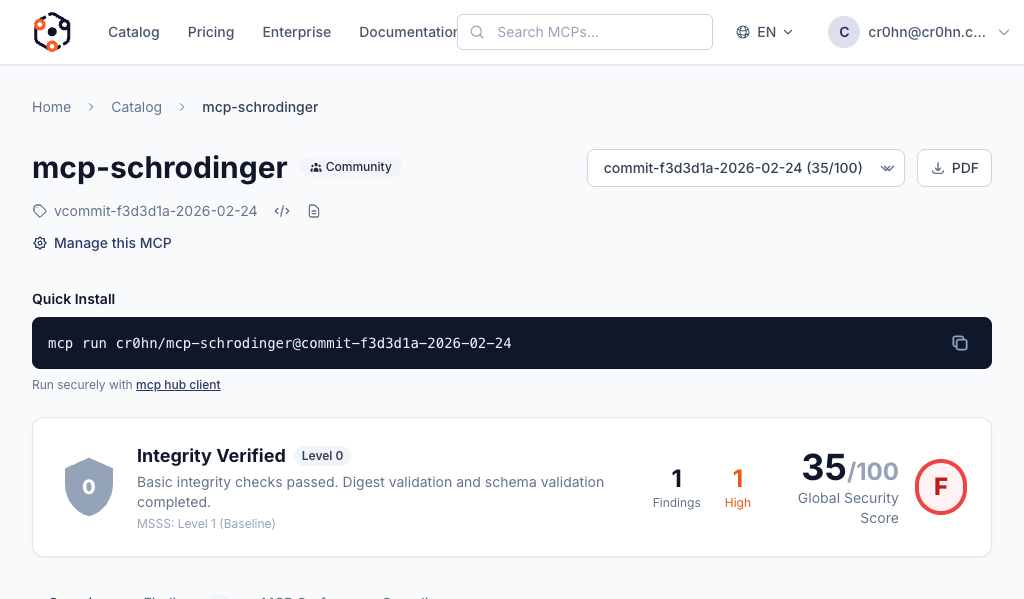
When you attempt to run a package with a security score below 60, the CLI displays an interactive warning prompt:
WARNING: Package cr0hn/[email protected] has a low security score (42/100).

  Score:      42/100
  Cert Level: 0 (Integrity Verified)
  Origin:     Community
  Findings:   3 high, 7 medium

Do you want to continue? [y/N]
If you need to bypass this prompt (for example, in a script or CI environment), use the --trust flag:
smcp run cr0hn/[email protected] --trust
This skips the interactive prompt and proceeds with execution. The sandbox is still applied. Use this flag only when you have independently verified the package is safe for your use case.
Disabling the Sandbox with –no-sandbox
smcp run cr0hn/[email protected] --no-sandbox
Some MCP servers require capabilities that are not available inside a sandbox (e.g., direct hardware access or privileged network operations). In those cases, --no-sandbox is necessary, but you should only use it with packages that have a high score and a verified or official origin.
Passing Environment Variables with –env-file
Many MCP servers need configuration values such as API keys, database URLs, or feature flags. Use --env-file to pass an environment file:
smcp run cr0hn/mcp-postgres@latest --env-file .env
The file follows standard .env format:
DATABASE_URL=postgres://user:pass@localhost:5432/mydb
API_KEY=sk-abc123
DEBUG=false
Variables defined in the env file are injected into the MCP server process. They are not visible to other processes on the system. The sandbox restricts the server from reading your shell environment, so --env-file is the only way to pass configuration.
Additional Flags
| Flag | Description |
|---|---|
--verbose | Print detailed output including full manifest, policy evaluation details, and sandbox configuration. Useful for debugging. |
--json | Output all information in JSON format. Useful for scripting and integration with other tools. |
--timeout <duration> | Set a maximum execution time (e.g. --timeout 30s, --timeout 5m). The server process is terminated if it exceeds this duration. |
--registry <url> | Use a custom registry URL instead of the default public registry. Useful for self-hosted or enterprise deployments. |
--warning-threshold <score> | Security score threshold (0-100) for injecting LLM security warnings when using --trust. Default: 80. See LLM Security Warnings. |
Flags can be combined:
smcp run cr0hn/[email protected] \
  --env-file .env \
  --timeout 10m \
  --verbose
Cache Management
The CLI maintains a local cache of downloaded packages to avoid redundant downloads. Use the smcp cache subcommands to manage it:
List Cached Packages
smcp cache ls
Displays all packages in the cache with their version, size, and last-used date.
Remove a Specific Package
smcp cache rm cr0hn/mcp-schrodinger
Removes all cached versions of the specified package.
Clear the Entire Cache
smcp cache rm --all
Removes every package from the cache. The next smcp run command will need to download packages fresh from the registry.
Garbage Collection
smcp cache gc
Removes expired entries from the cache based on the configured TTL (time to live). This is the recommended way to reclaim disk space without losing frequently used packages.
Troubleshooting
First Step: Run smcp doctor
If something is not working, start with diagnostics:
smcp doctor
This checks:
- Required runtimes (Python, Node.js, Go) are installed and accessible.
- Sandbox capabilities are available on your platform.
- The registry is reachable over the network.
- Disk space is sufficient for the cache.
- Authentication tokens are valid (if logged in).
Common Issues
Registry unreachable
ERROR: failed to resolve cr0hn/mcp-schrodinger@latest: registry unavailable
Check your network connection and verify the registry URL. If you are using a custom registry, confirm it is running and accessible:
smcp doctor
If you are behind a corporate proxy, ensure the proxy is configured in your environment.
Policy rejection
ERROR: policy violation: package cert_level=0 does not meet minimum required level 2
Your organization has set a minimum certification level policy. The package you are trying to run does not meet it. Either:
- Contact the package author to improve their security score.
- Ask your organization admin to adjust the policy.
- Use a different package that meets the required level.
Sandbox errors
ERROR: sandbox initialization failed: sandbox-exec not available
The CLI could not set up process isolation on your platform. Run smcp doctor to check sandbox capabilities. On macOS, sandbox-exec should be available by default. On Linux, check that seccomp and user namespaces are enabled. As a last resort, use --no-sandbox if you trust the package.
Integrity validation failed
ERROR: integrity check failed: expected sha256:a1b2c3... got sha256:x9y8z7...
The downloaded bundle does not match the expected digest. This could indicate a corrupted download or a tampered package. Try clearing the cache and downloading again:
smcp cache rm cr0hn/mcp-schrodinger
smcp run cr0hn/[email protected]
If the error persists, report the issue to the MCP Hub team.
Next Steps
- Browsing the Catalog – Find MCP servers to run.
- Creating an MCP – Publish your own MCP server.