Managing Your MCPs
5 min read
Once you have published one or more MCP servers, the MCP Hub dashboard gives you a central place to monitor their security status, trigger rescans, adjust settings, and stay informed about changes. This guide walks through every section of the dashboard.
Accessing the Dashboard
Log in to mcp-hub.info with your account and click Dashboard in the top navigation. The dashboard is your home base for everything related to your published MCP servers.
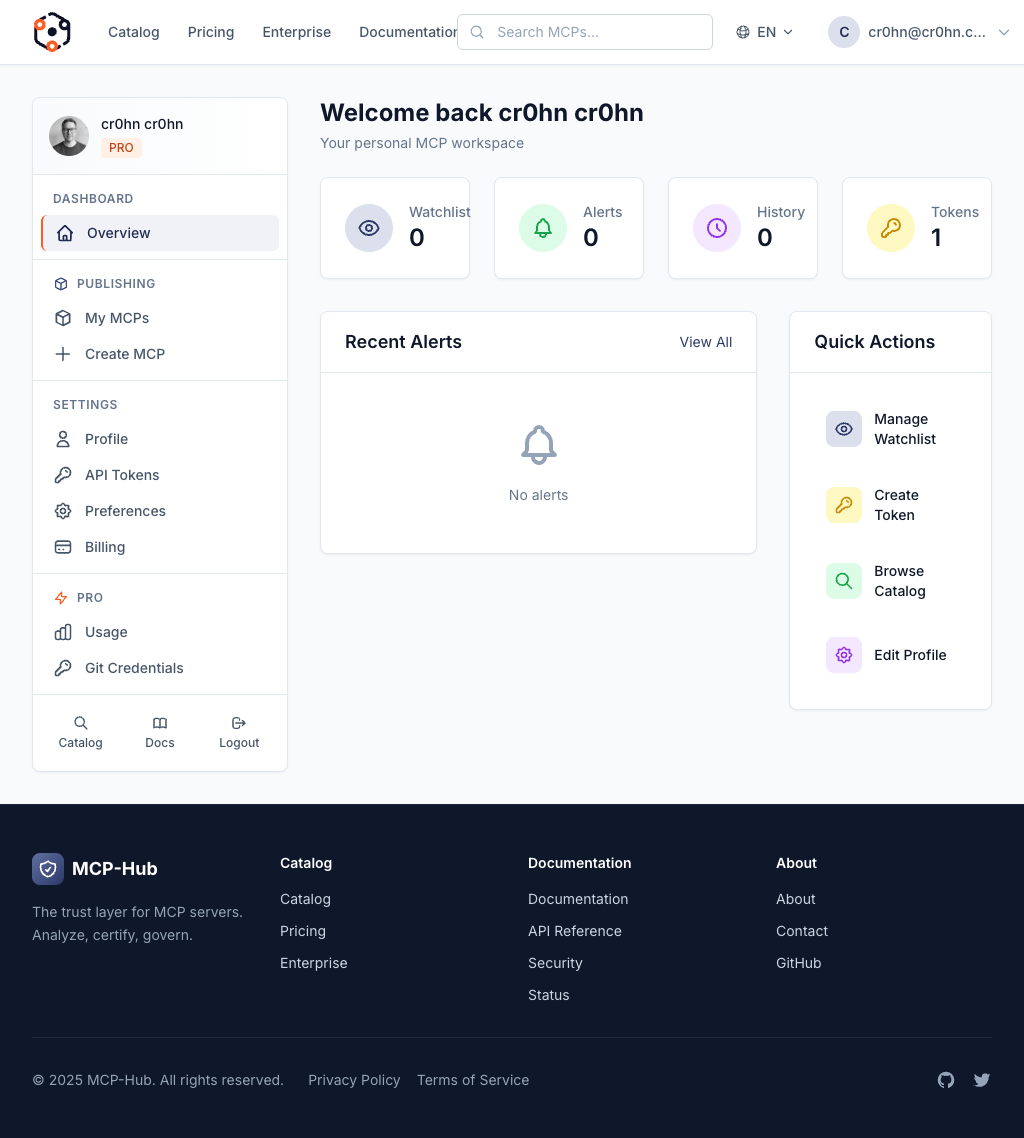
Dashboard Overview
The overview page shows quick stats at a glance:
- Total MCPs: The number of MCP servers you have published.
- Certified Count: How many of your MCPs have achieved certification level 1 or above.
- Average Score: The mean security score across all your published MCPs.
These numbers update automatically whenever an analysis completes. Use them to track your overall security posture over time.
My MCPs
Navigate to Dashboard –> My MCPs to see a list of all your published MCP servers.
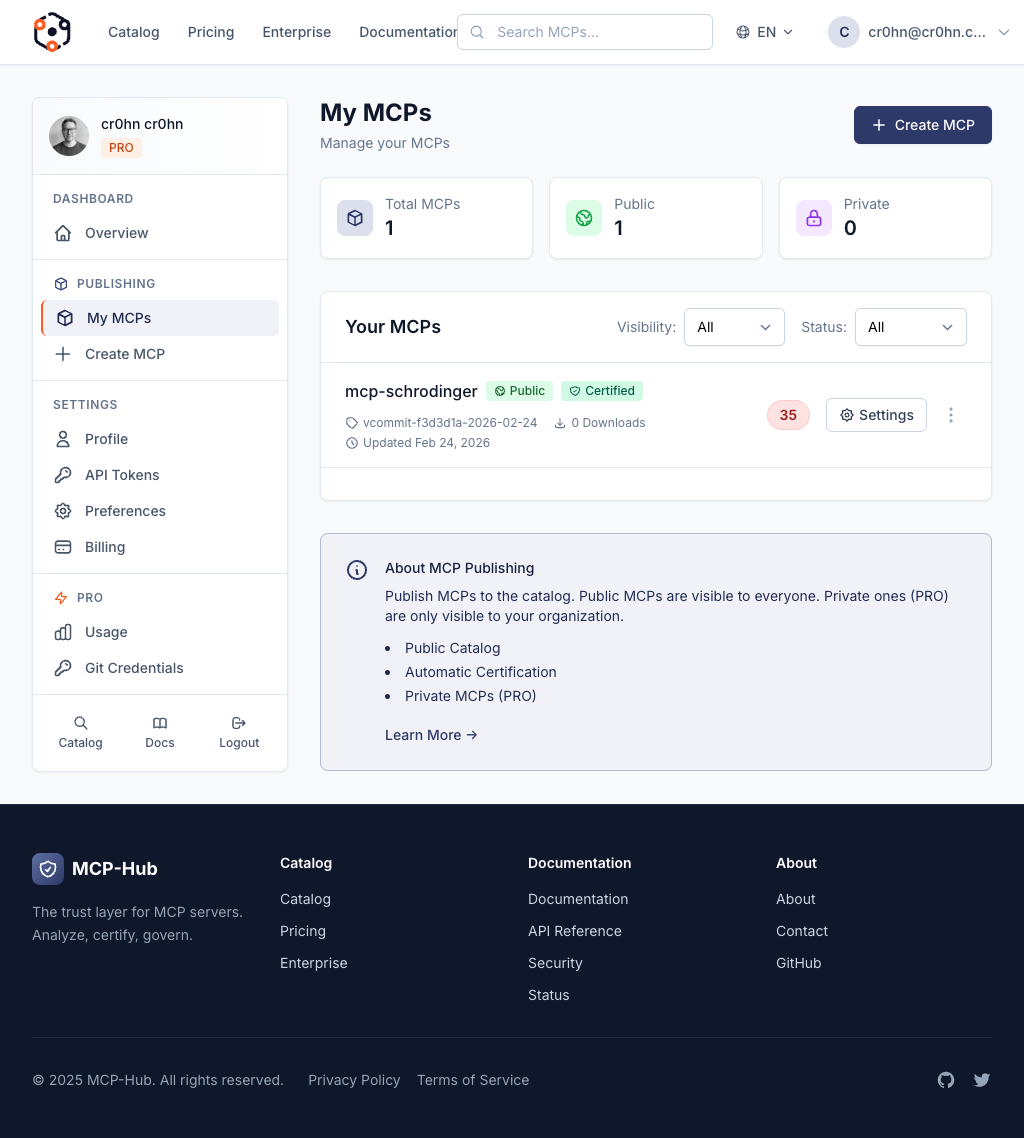
Each MCP in the list shows its name, current score, certification level, and status. Click on any row to open the full detail page with findings, controls, and metadata.
MCP Statuses
Every MCP server has one of three statuses:
| Status | Meaning |
|---|---|
| Analyzing | A security scan is currently in progress. Results will appear once the analysis pipeline completes, typically within a few minutes. |
| Certified | The MCP passed analysis and is visible in the public catalog. It has been assigned a certification level based on its score. |
| Failed | The analysis encountered an error or the MCP did not pass the minimum requirements. Check the detail page for information about what went wrong. |
If an MCP shows Failed status, open its detail page to see the specific error. Common causes include repository access issues, unsupported project structures, or build failures during analysis.
Rescanning
After you push code changes to your MCP server’s repository, you can trigger a fresh analysis to get updated results.
How to Rescan
- Go to Dashboard –> My MCPs.
- Click on the MCP you want to re-analyze.
- Click the Rescan button on the MCP detail page.
- The status will change to Analyzing while the pipeline runs.
The analysis pipeline clones the latest code from your repository, runs the full security scan, computes a new score, and updates the certification level. This typically takes between one and five minutes depending on the size of your codebase.
When to Rescan
You should rescan your MCP after:
- Fixing vulnerabilities reported in the findings
- Updating dependencies to patch known CVEs
- Adding tests, documentation, or input validation
- Making any significant code changes that could affect the security posture
Your certification level will automatically adjust based on the new score. If your score crosses a threshold (60, 80, or 90), your certification level changes accordingly.
MCP Settings
Each published MCP server has settings you can configure from its detail page.
Metadata
Edit the following metadata fields for your MCP:
- Name: The display name shown in the catalog.
- Description: A short summary of what the MCP server does. This appears in catalog search results and the detail page header.
- Category: The category under which your MCP is listed (e.g., Development Tools, Data & Analytics, Security, Productivity).
- Tags: Searchable keywords that help users find your MCP. Add tags that describe the MCP’s functionality, supported languages, or use cases.
Visibility
Control who can see your MCP server:
- Public: The MCP is visible in the catalog and can be discovered, downloaded, and run by anyone. This is the default for certified MCPs.
- Private: The MCP is only visible to you in your dashboard. It does not appear in the public catalog or search results. Use this for MCPs that are still in development or not ready for public use.
You can switch between public and private at any time. Changing an MCP to private removes it from the catalog immediately but does not delete the analysis results or certification data.
Watchlist
The watchlist lets you track MCP servers you care about, even ones you did not publish yourself.
Adding MCPs to Your Watchlist
- Navigate to any MCP detail page in the catalog.
- Click the Watch button.
- The MCP now appears in your Dashboard –> Watchlist.
What You Get
When a watched MCP server changes, you receive notifications:
- Score changes: If the MCP’s security score goes up or down after a rescan.
- New findings: If new vulnerabilities are discovered.
- Certification level changes: If the MCP gains or loses a certification level.
The watchlist is useful for teams that depend on third-party MCP servers and want to stay informed about their security status without manually checking each one.
Alerts
The Alerts section in your dashboard collects all security-related notifications for your published MCPs and watched MCPs.
Types of Alerts
| Alert Type | Description |
|---|---|
| Score Change | Your MCP’s security score has increased or decreased after a rescan. The alert shows the old and new scores. |
| New Findings | New vulnerability findings have been discovered in your MCP. The alert links directly to the findings detail. |
| Certification Level Change | Your MCP has moved to a different certification level, either up (score improved) or down (score dropped). |
| Dependency CVE | A new CVE has been published that affects one of your MCP’s dependencies. |
Managing Alerts
- Alerts appear in your dashboard with a timestamp and a link to the relevant MCP detail page.
- Click on an alert to see the full details and take action.
- Alerts are marked as read once you view them.
Staying on top of alerts helps you maintain a strong security posture for your MCP servers and respond quickly when issues are found.
Summary
The MCP Hub dashboard provides everything you need to manage your published MCP servers:
| Feature | Where to Find It |
|---|---|
| Overview stats | Dashboard home page |
| All your MCPs | Dashboard –> My MCPs |
| Trigger a rescan | MCP detail page –> Rescan button |
| Edit metadata and visibility | MCP detail page –> Settings |
| Track third-party MCPs | Dashboard –> Watchlist |
| Security notifications | Dashboard –> Alerts |
For information on understanding the security analysis results in detail, see the Viewing Vulnerabilities guide.