Browsing the Catalog
4 min read
The MCP Hub catalog is a public, searchable directory of all certified MCP servers available on the platform. Whether you are looking for an AI integration, a data connector, or a DevTools helper, the catalog is the starting point.
Opening the Catalog
Navigate to mcp-hub.info/catalog in your browser. No account is required to browse.
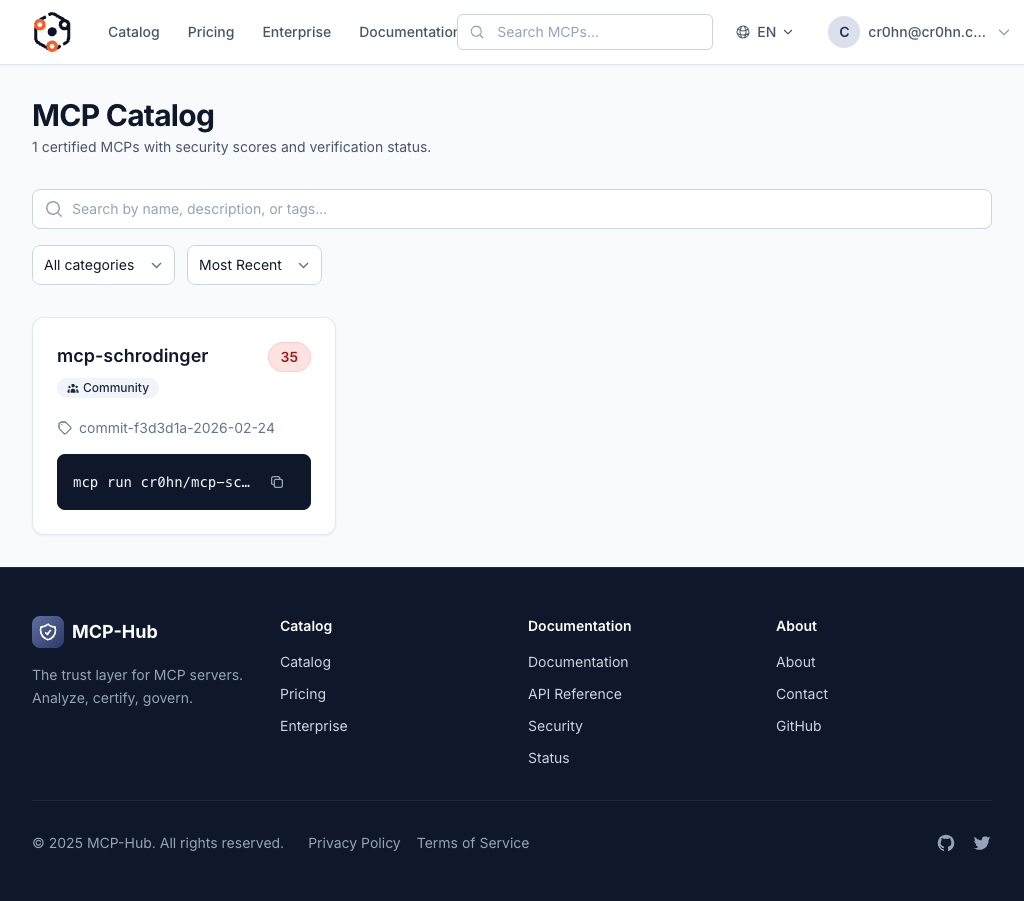
What You See
The catalog displays a grid of MCP cards. Each card is a summary of one MCP server and contains the following elements:
| Element | Description |
|---|---|
| Name | The package name in org/name format (e.g. cr0hn/mcp-schrodinger). |
| Author / Org | The organization or individual who published the server. |
| Origin badge | Indicates who maintains the package (see Understanding origin badges below). |
| Score badge | A numeric score from 0 to 100 reflecting the security analysis results (see Understanding score badges below). |
| Version | The latest published version of the package. |
| Description | A short summary of what the MCP server does. |
| Tags | Relevant keywords such as ai, database, github, etc. |
Searching the Catalog
Use the search bar at the top of the catalog page to find servers by name, description, or tags. Type your query and results update in real time.
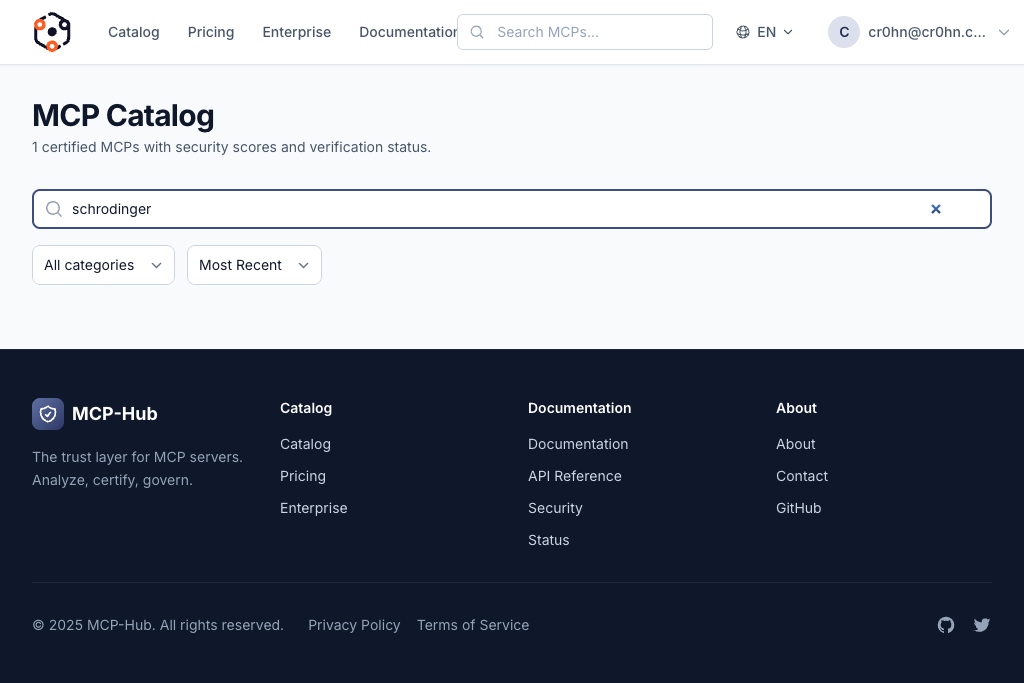
For example, searching for postgres will return MCP servers related to PostgreSQL, whether the word appears in the name, description, or tags.
Filtering by Category
Below the search bar you will find category filters. Click any category to narrow the results:
- AI – Servers related to language models, embeddings, and AI tooling.
- Data – Database connectors, data pipelines, and ETL tools.
- DevTools – Development utilities, CI/CD integrations, and code analysis.
- Security – Security scanners, credential managers, and compliance tools.
- Other – Everything that does not fit the categories above.
You can combine a search query with a category filter. For instance, select the Data category and then search for redis to find Redis-specific data connectors.
Sorting Results
The catalog supports three sort modes, selectable from the dropdown at the top-right of the grid:
| Sort option | Behavior |
|---|---|
| Recent | Newest publications first. Useful for discovering what was just added to the platform. |
| Name | Alphabetical order (A-Z). Useful when you know the approximate name of the package. |
| Score | Highest security score first. Useful when you want the most thoroughly vetted servers. |
Understanding Origin Badges
Every MCP card displays an origin badge that tells you who is responsible for the package:
| Badge | Color | Meaning |
|---|---|---|
| Official | Blue | Maintained by the MCP Hub team. These packages receive the highest level of oversight and are updated alongside the platform itself. |
| Verified | Green | Published by a developer or organization whose identity has been verified. The publisher has proven ownership of the associated domain or GitHub account. |
| Community | Gray | Published by any registered user. No identity verification beyond account creation. Community packages still go through the full automated security analysis pipeline. |
Understanding Score Badges
The score badge on each card reflects the automated security analysis result on a 0-100 scale. The badge color provides a quick visual indicator:
| Color | Score range | Meaning |
|---|---|---|
| Green | 80 – 100 | High confidence. The server passed comprehensive analysis with no critical or high-severity findings. Eligible for certification level 2 or higher. |
| Yellow | 60 – 79 | Moderate confidence. The server has some findings that may warrant review but no critical vulnerabilities were detected. Eligible for certification level 1. |
| Red | 0 – 59 | Low confidence. The server has significant findings. An interactive confirmation prompt will appear if you try to run it with smcp run. |
Viewing MCP Details
Click any card in the catalog to open its detail page. The detail page provides:
- Full description and metadata.
- The complete security analysis results, including individual findings and their severity.
- The certification level (0 through 3) and what it means.
- Version history with changelogs.
- The manifest (runtime, entry point, permissions, dependencies).
- Installation instructions.
Copying the Install Command
Each MCP card includes a quick-copy button for the install command. Click it to copy a command like:
smcp run cr0hn/mcp-schrodinger@latest
Paste this into your terminal to immediately download, verify, and run the MCP server. See the Running MCP Servers guide for a full walkthrough of the execution pipeline.
Next Steps
- Running MCP Servers – Learn how to execute packages you find in the catalog.
- Creating an MCP – Publish your own MCP server to the catalog.