Quickstart
5 min read
This guide walks you through running your first MCP server. By the end, you will have executed a certified MCP package with full sandboxing in a single command.
Prerequisites
- The
smcpCLI installed on your machine. If you have not installed it yet, follow the Installation guide.
Verify you are ready:
smcp --version
Step 1: Run an MCP Server
Run the following command to download and execute an MCP server:
smcp run cr0hn/mcp-schrodinger@latest
The CLI walks through six steps, showing a progress indicator for each one:
[+] Running cr0hn/mcp-schrodinger@latest
 => [1/6] Resolving package                ✓ 320ms
 => [2/6] Checking policies                ✓ 2ms
 => [3/6] Fetching manifest                ✓ 410ms
 => [4/6] Fetching bundle                  ✓ 1.2s
 => [5/6] Extracting bundle                ✓ 85ms
 => [6/6] Preparing execution              ✓ 12ms

  Score 92/100 ●●●●○  Cert 2 (Security Certified)
  Origin: official  SHA: 3fa8b2c  Format: hub

  Sandbox: darwin-seatbelt  (cpu:✓ mem:✓ pid:✓ fd:✓)
  Limits: cpu=1000m mem=512M timeout=5m0s pids=64

● MCP server listening (stdio) — Press Ctrl+C to stop
On subsequent runs, cached steps are skipped:
 => [3/6] Fetching manifest                ● cached
 => [4/6] Fetching bundle                  ● cached
What happened at each step
Resolving package – The CLI contacted the MCP Hub registry to find the latest version of
cr0hn/mcp-schrodingerand retrieved its manifest, which includes the SHA-256 digest, certification level, and security score.Checking policies – The CLI verified that the package meets your local security policy: certification level, allowed origins, and minimum score. By default, any certification level is accepted. Organizations can raise the minimum level to enforce stricter requirements.
Fetching manifest – The manifest was downloaded from the registry and its SHA-256 digest validated. The manifest contains the package metadata, entrypoint, permissions, and security findings. On subsequent runs this step is skipped if the manifest is already cached.
Fetching bundle – The code bundle was downloaded from the registry and its SHA-256 digest validated. This guarantees the package has not been tampered with since certification. On subsequent runs this step is skipped if the bundle is already cached.
Extracting bundle – The bundle (a gzipped tarball) was extracted to a temporary directory with restricted permissions.
Preparing execution – Resource limits (CPU, memory, PIDs, file descriptors, timeout) were applied and the sandbox was configured. The exact sandboxing mechanism depends on your operating system (Seatbelt on macOS, cgroups/namespaces/seccomp/Landlock on Linux, Job Objects on Windows).
After the six steps, the CLI displays an info card with the security score, certification level, origin, sandbox capabilities, and resource limits. Then the MCP server starts listening on stdio, ready to receive requests from an MCP client (such as Claude Desktop or any other MCP-compatible application).
Security Score and the --trust Flag
The security score (0 to 100) is computed automatically by MCP Hub’s analysis engine. Packages with a score below 80 are considered potentially insecure, and the CLI will ask for explicit confirmation before running them:
  Score 45/100 ●●○○○  Cert 1 (Static Verified)
  Origin: community  SHA: 9c1e4a7  Format: hub
  ⚠ 2 high findings

  ⚠ Security score is 45/100 (below 80). Continue? [y/N]
You have three options:
- Answer
yto confirm and run the package despite the low score. - Answer
N(or press Enter) to abort execution. - Use the
--trustflag to skip the confirmation entirely:
smcp run --trust cr0hn/some-mcp@latest
The --trust flag tells the CLI to proceed without asking, regardless of the security score. This is useful in CI/CD pipelines or automated environments where there is no interactive terminal. In non-interactive mode (piped stdin), low-score packages are always rejected unless --trust is passed.
When to use
--trust: Use it only when you have already reviewed the security report for a package and accept the risks, or in automated workflows where you have other controls in place. For day-to-day use, let the CLI prompt you – the confirmation exists to protect you from running packages with known vulnerabilities.
Step 2: Browse the Catalog
Open mcp-hub.info/catalog in your browser to explore available MCP servers.
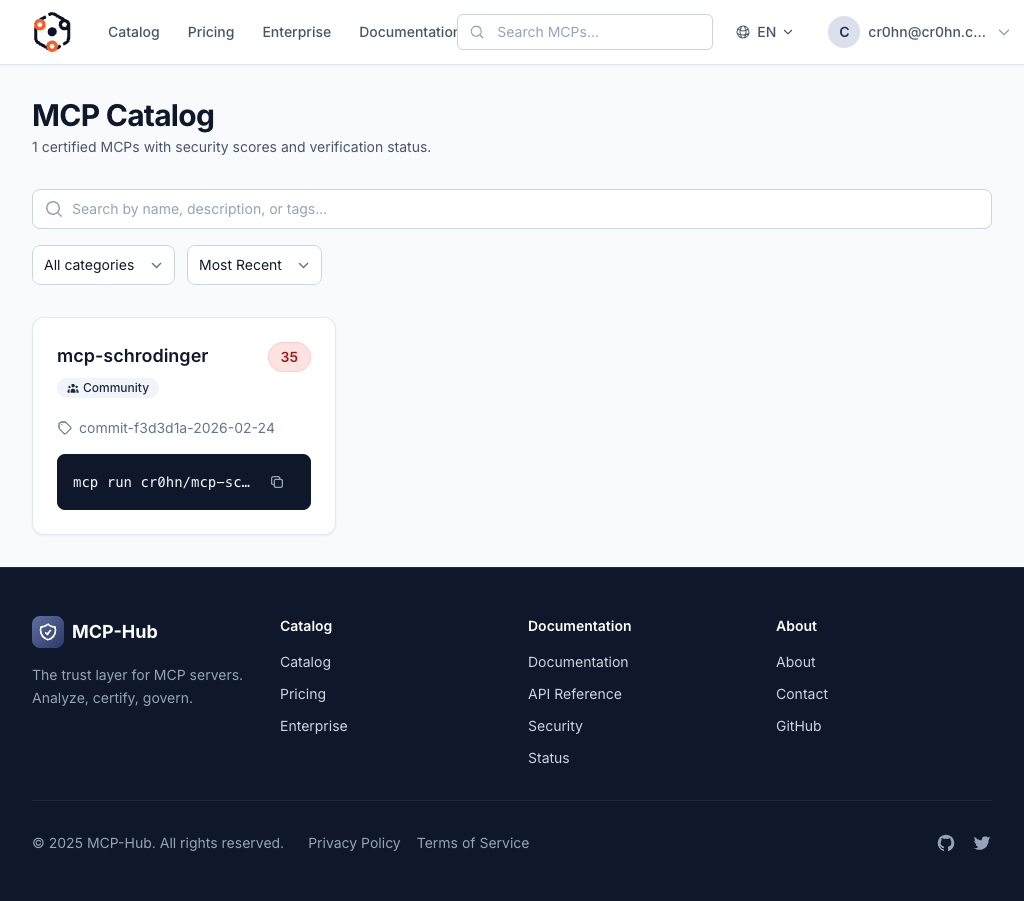
The catalog shows every certified MCP server with its name, publisher, description, security score, and certification level. Use the search bar to find servers by name or keyword.
Step 3: View Security Details
Click on any MCP server in the catalog to see its full security report.
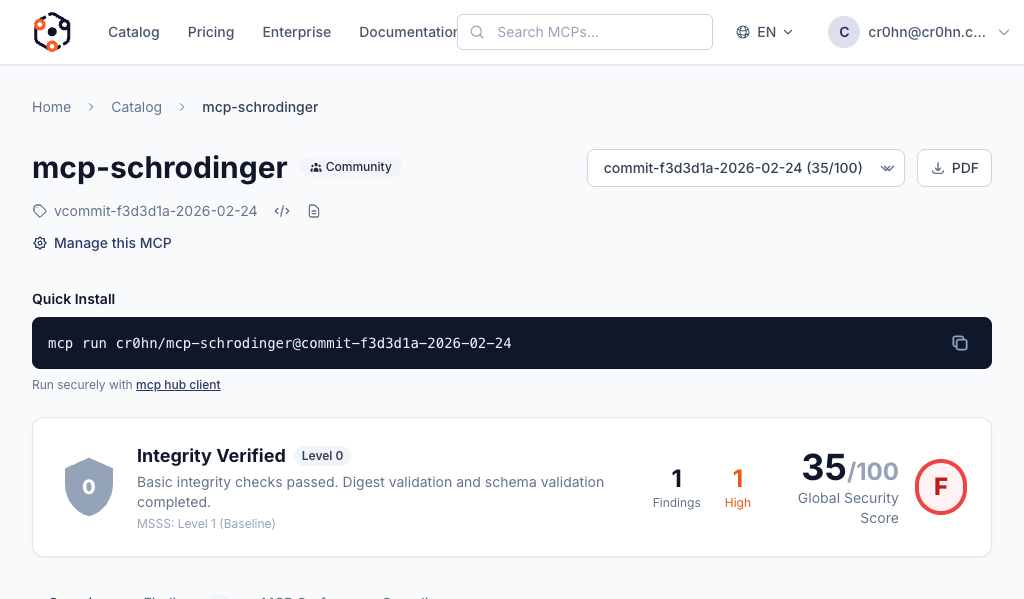
The detail page shows:
- Security score – the overall score from 0 to 100 based on automated analysis
- Certification level – the trust level assigned based on the score
- Vulnerability findings – specific issues found during analysis, grouped by severity
- Security controls – which security controls passed or failed, with evidence
- Version history – scores and findings for each published version
This information helps you make informed decisions about which MCP servers to run. A higher score means fewer detected vulnerabilities and better adherence to security best practices.
Useful Commands
Now that you have run your first MCP server, here are a few more commands to explore:
# Pre-download a package without running it
smcp pull cr0hn/mcp-schrodinger@latest

# View package details and security metadata
smcp info cr0hn/mcp-schrodinger@latest

# Run a low-score package without confirmation prompt
smcp run --trust cr0hn/some-experimental-mcp@latest

# Run without sandboxing (use with caution)
smcp run --no-sandbox cr0hn/mcp-schrodinger@latest

# List cached packages
smcp cache ls

# Remove a cached package
smcp cache rm cr0hn/[email protected]

# Check system readiness
smcp doctor
Next Steps
You have successfully run your first certified MCP server. Here is what to explore next:
- Browse the catalog – find more MCP servers to run
- Create and publish your own MCP – submit your MCP server to the catalog
- Understanding security reports – learn how to read vulnerability findings and security scores
- CLI reference – full documentation for all
smcpcommands